Course Progression and Graduation
This feature is for Super Admin and the course's author.
Watch (about 2 minutes):
Course Progression decides when someone graduates from a course, based on their quiz scores. Trainers, parents and students take the course's quizzes in the app; once their weighted score reaches the pass mark, they graduate and get a certificate.
1. Before you start: the course needs quizzes
Progression only works with quizzes. Each exam must be a Quiz resource inside a topic of the course:
- On the course's edit page, find the topic and click + next to Add resource.
- Set Type to Quiz, choose the quiz (or click Create new quiz), and Save.
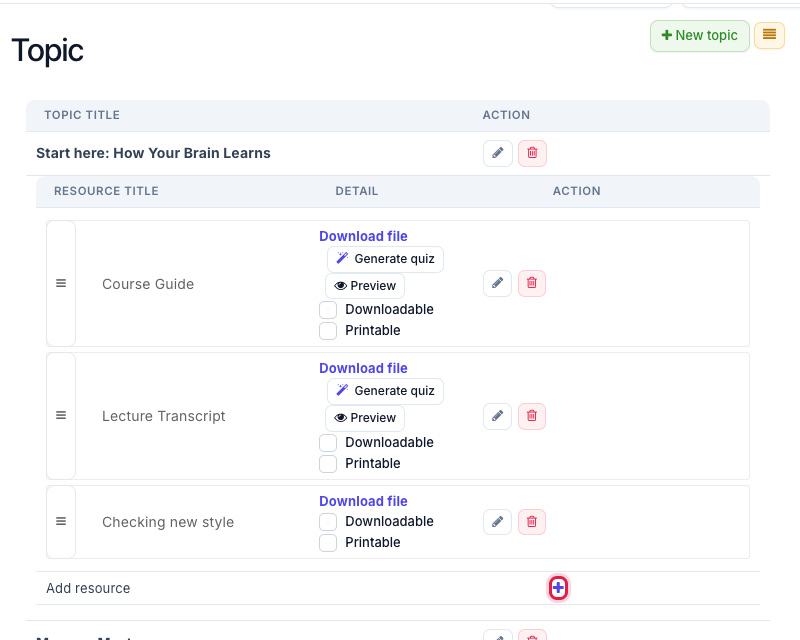
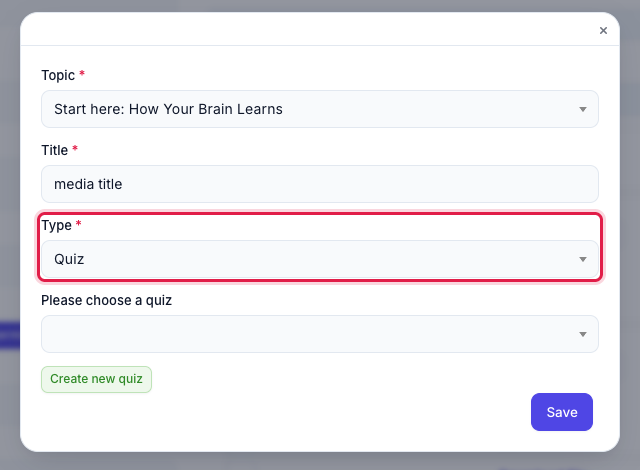
If the course has no quizzes yet, the Progression box shows "This course has no quizzes attached to its topics yet. Add a Quiz resource before setting exam components." and no exam can be picked.
Who can see and change it: only Super Admin and the course's author see the Course Progression box.
2. Turn it on
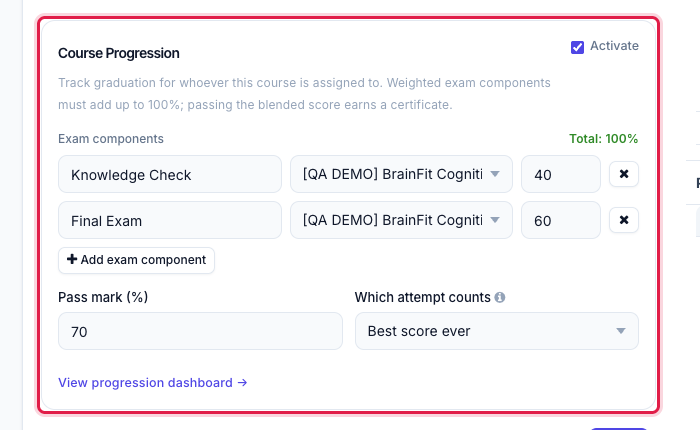
On the course's edit page, find the Course Progression box in the left column and tick Activate. The settings open below it.
3. Add the exam components
Click Add exam component for each exam, and fill in:
- Label: the name people will see, for example Final Exam.
- Quiz: pick one of the course's quizzes.
- Weight (%): how much this exam counts.
You can add as many exams as you need (5 is fine). The weights must add up to exactly 100%: the Total on the right turns green at 100%. If it isn't 100, Save is rejected with "Exam component weights must add up to 100%".
4. Pass mark and which attempt counts
- Pass mark (%): the overall score someone needs to graduate.
- Which attempt counts, when someone takes a quiz more than once:
- Best score ever: their highest score counts.
- Most recent attempt: only the latest attempt counts.
- First attempt only: retries don't count.
Click Save at the bottom of the course page when you're done.
5. How people graduate
The trainer, parent or student takes the quizzes in the app. Scores update on the dashboard within about a minute.
- The overall score is the weighted blend of all exams.
- All exams are required: someone has to take every exam before they can graduate.
- Overall score ≥ pass mark means graduated.
- If someone changes an answer before submitting, the last answer counts.
6. The Progression dashboard
Click Progression in the top bar of the course edit page (or View progression dashboard → in the Course Progression box).

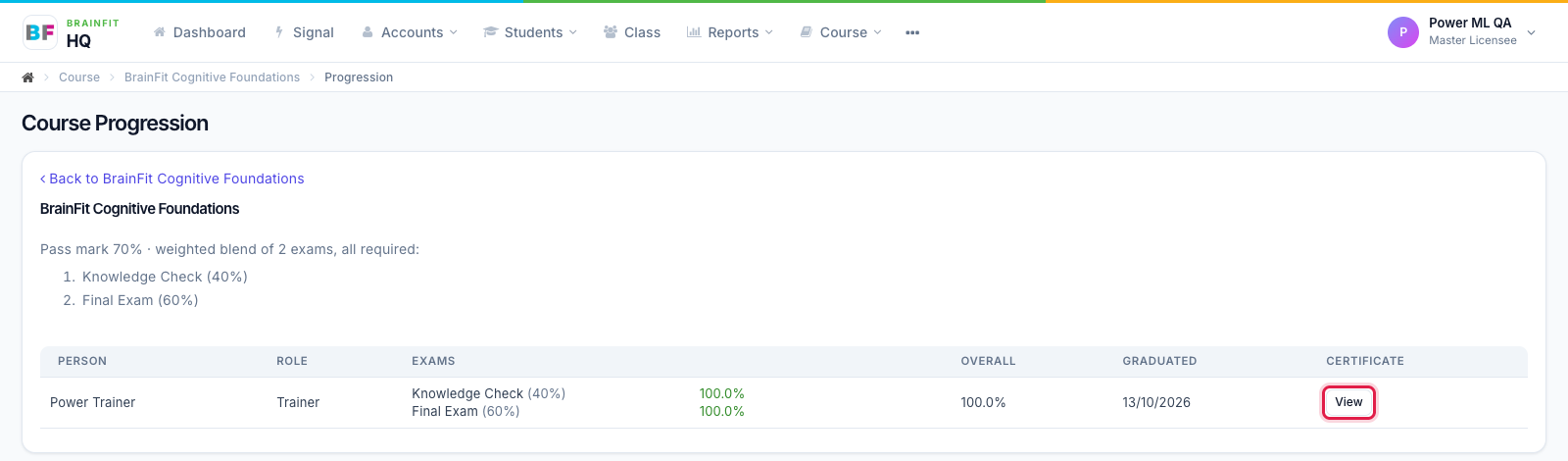
The page lists the pass mark and exams, then one row per person:
| Column | What it shows |
|---|---|
| Person | Name |
| Role | Trainer, Parent or Student |
| Exams | One line per exam with the score, or Not yet |
| Overall | The weighted score |
| Graduated | The date they passed |
| Certificate | View once they've graduated |
7. Certificate
Click View to open the person's certificate page. It shows the BrainFit logo, the course, the person's average exam mark, the date, a seal and a verification code, with a Verified badge and a details box underneath. Anyone with the link can view it, so it can be used to verify the certificate.
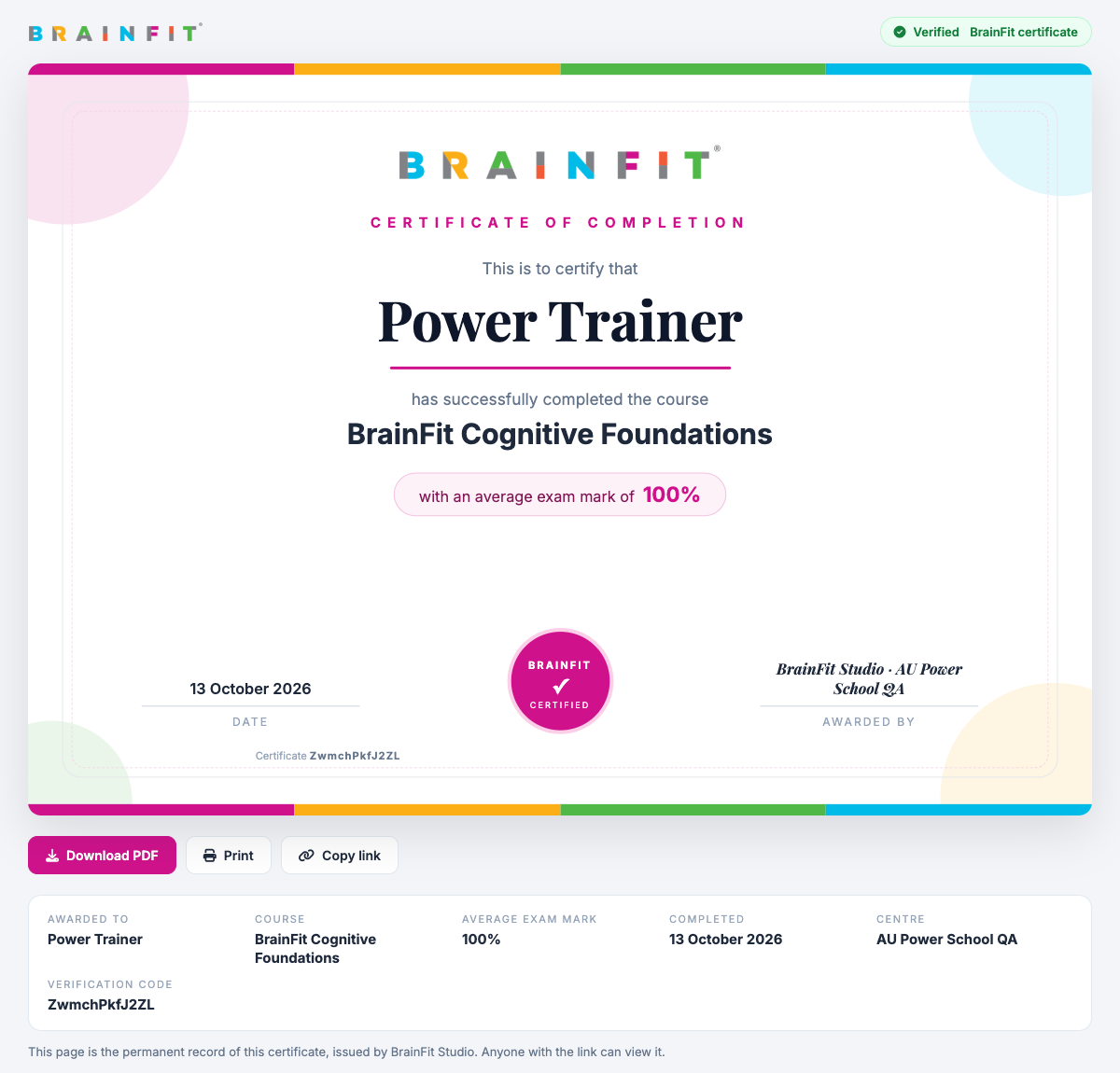
From this page you can Print or Copy link. Click Download PDF to open the BrainFit certificate copy, where you can download or print it. The copy is issued only when someone clicks Download PDF (nothing is created automatically).